 CutoutDock
Everyday objects
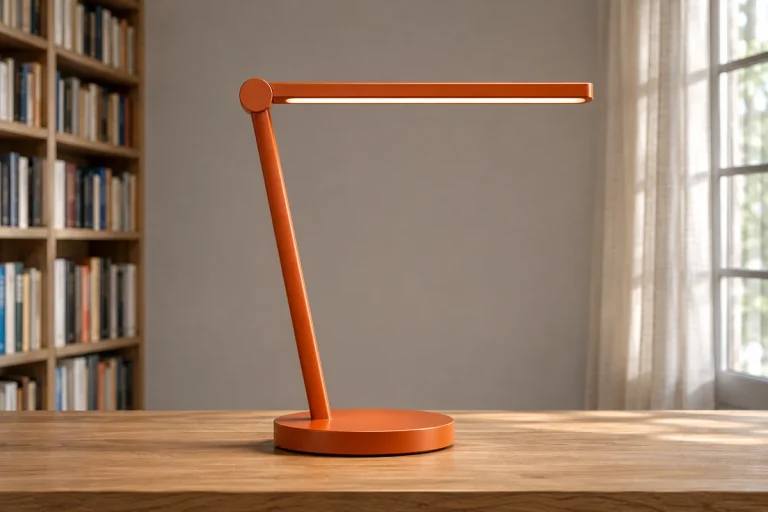
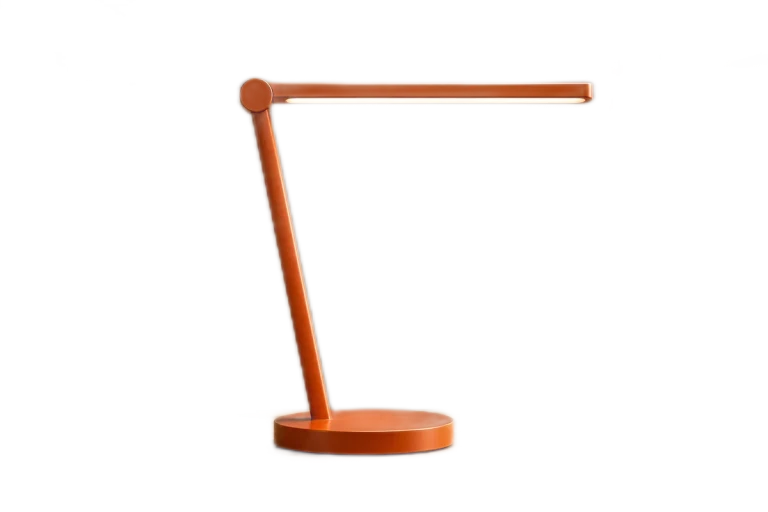
Desk lamp in a study
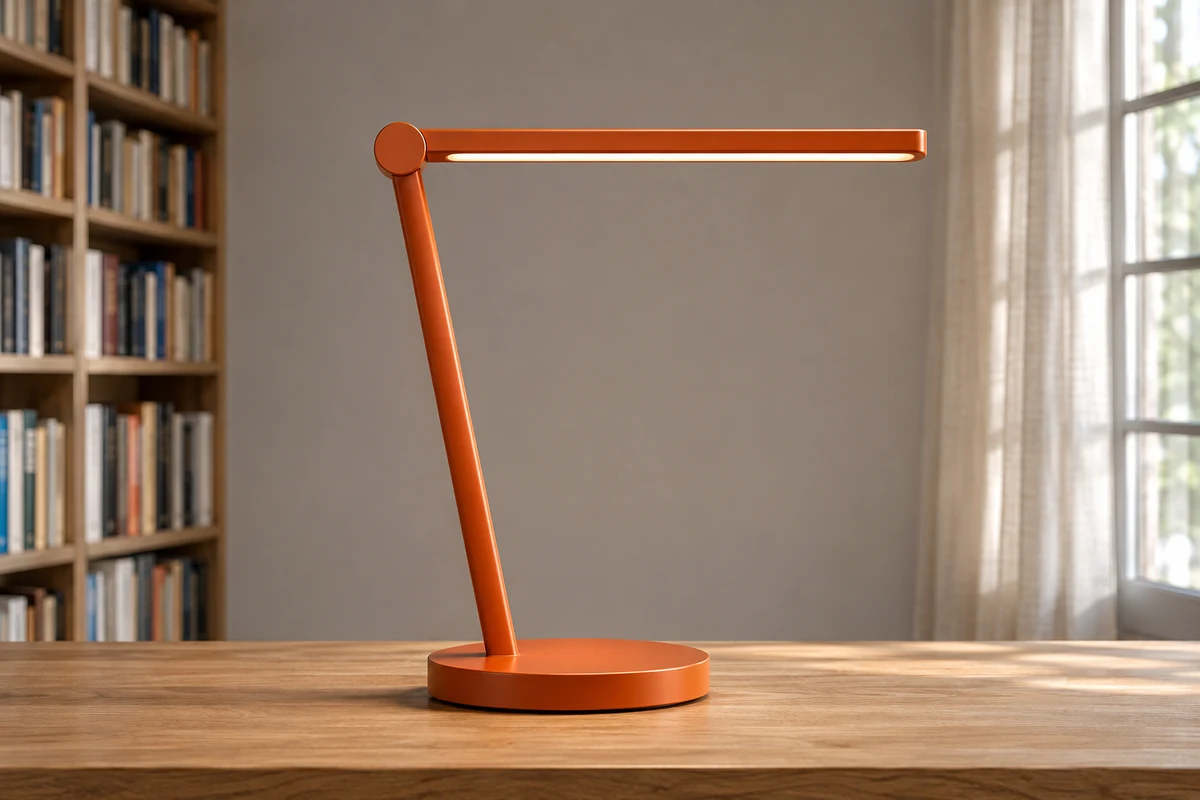
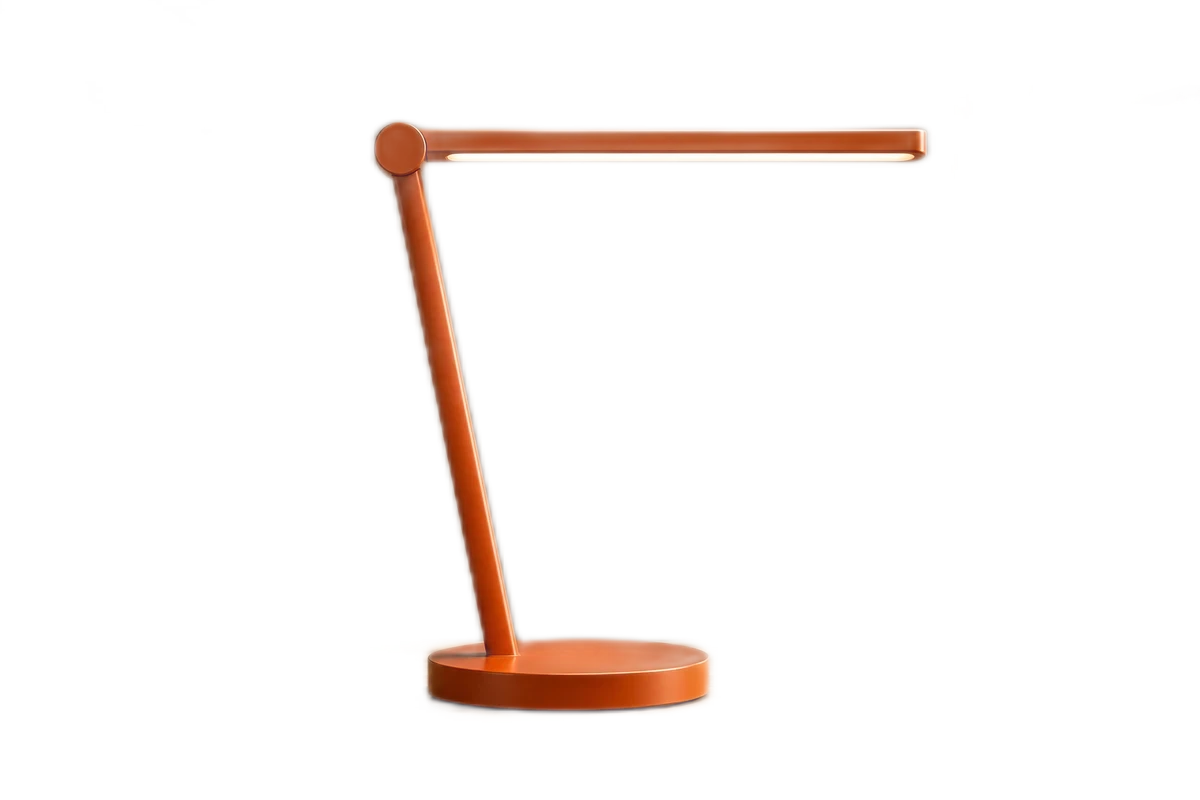
Keep the slim light bar, hinge and base while removing the desk and room.
Photo cutout studio
Cut out people and products. Refine the edges and export a full-size transparent PNG.
Choose a file, drag it here, or paste an image.
JPG, PNG or WebP · up to 10 MB and 12 MP
Refine your cutout
Examples
Compare the originals and results, then open any sample in the editor and try it yourself.
Everyday objects
Keep the slim light bar, hinge and base while removing the desk and room.


Group portraits
Keep a group together, then use Erase or Restore to tidy hair and shoulders.
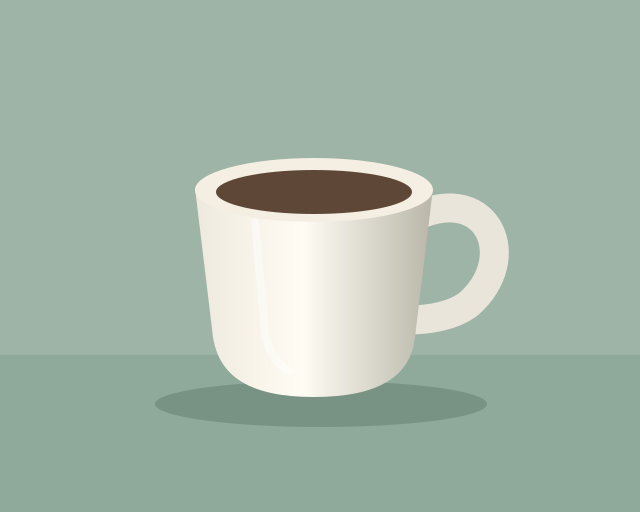
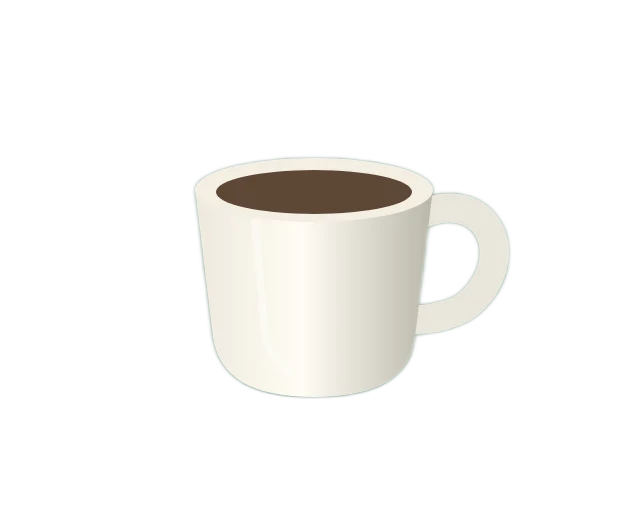
Product listings
Remove the surface and backdrop around the mug, including the gap inside the handle.
Backgrounds
Save a transparent layer for designs or put a product on a clean white square for a catalog.
Single photo
Keep the original dimensions and use the cutout on a slide, a flyer or a different photo.
Open the free editorProduct pack
Center each item on a square canvas with consistent margins. Try the sample pack before purchasing.
Try the product packQuick guides
Start with a clear subject and check the fine edges before you export.
Upload, drop or paste a JPG, PNG or WebP. Pick a shot with good separation between the subject and the background.
Toggle Show original to find missing details. Use a small Restore brush along hair or handles, and Erase to clear leftover pixels.
Download the full-size PNG for a transparent layer. For a matching set of product photos, choose a square size and add SKU names in the batch editor.
Pricing
Choose the editor that fits the job. Both process photos in your browser.
CutoutDock Free
$0
CutoutDock Pro
$29 USD, one-time
FAQ
Yes. CutoutDock edits and exports one image at a time for free, with no account or watermark.
Choose a JPG, PNG or WebP up to 10 MB, 12 megapixels and 8,192 pixels on either side. The downloaded PNG keeps the photo's dimensions after orientation.
PNG preserves transparency, including partially transparent edges. Use a transparent PNG to place a cutout over another image, slide or design. For a solid white JPG, use the product photo editor.
Open a JPG, PNG or WebP copy of the logo. Use Restore to bring back letters or white details you want to keep, then download the cutout as a PNG.
The editor runs in your browser. It downloads the background removal model when you open your first image.
Yes. Open the sample pack to download two example cutouts and their CSV manifest. Pro unlocks batch export for your own photos.